Status Updates
As part of the on-boarding process customer nominated email addresses or mobile numbers will be subscribed to the Status Updates page.
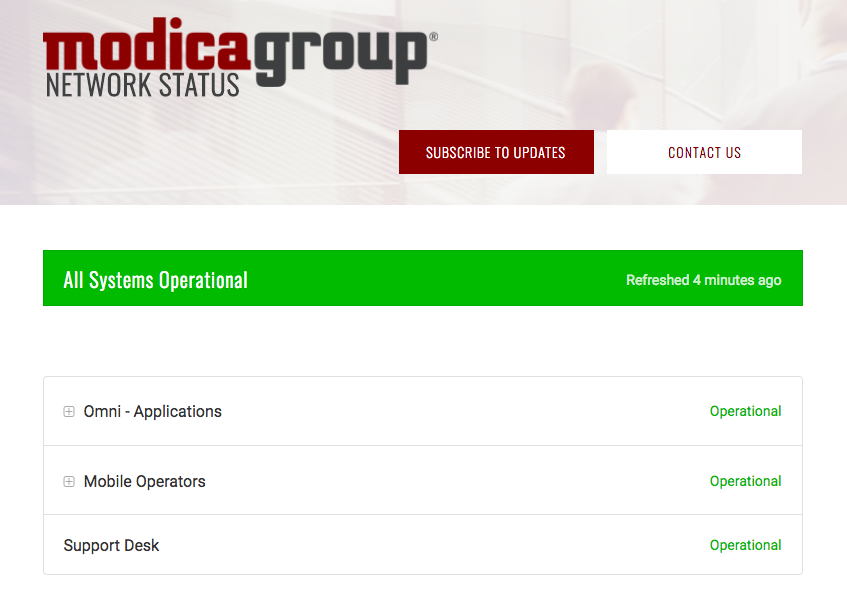
The main status page can be found at https://status.modicagroup.com/.
The status page provides regular updates on:
-
Each of the products that Modica provides to users
-
Mobile operators and global delivery of SMS
-
Support Desk functionality
-
Emergency and scheduled maintenance (for both Mobile Operators and Modica)
-
Outages and significant message delivery delays (for both Mobile Operators and Modica)
Subscribing
If you wish to subscribe additional people you can follow the below process:
- Navigate to https://status.modicagroup.com/
-
Click “Subscribe to Updates” button
-
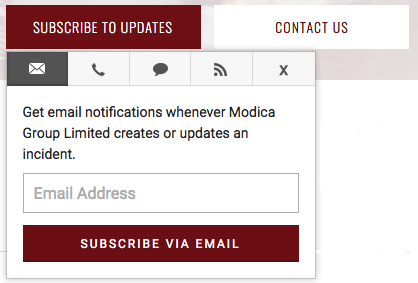
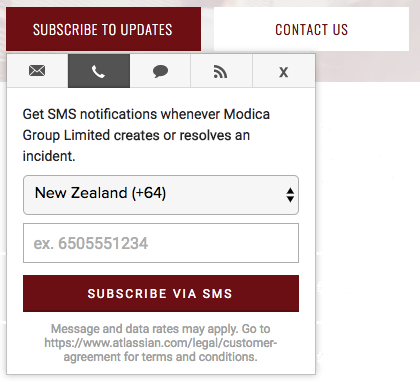
Choose the method to receive updates that is most convenient
Email:
SMS:
-
Choose your country code from the dropdown
-
Add the mobile number that needs to receive the SMS (dropping the zero off the front)
-
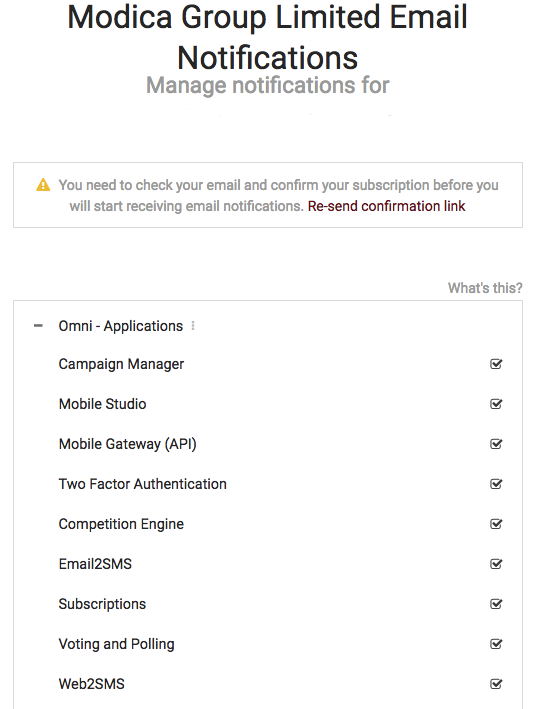
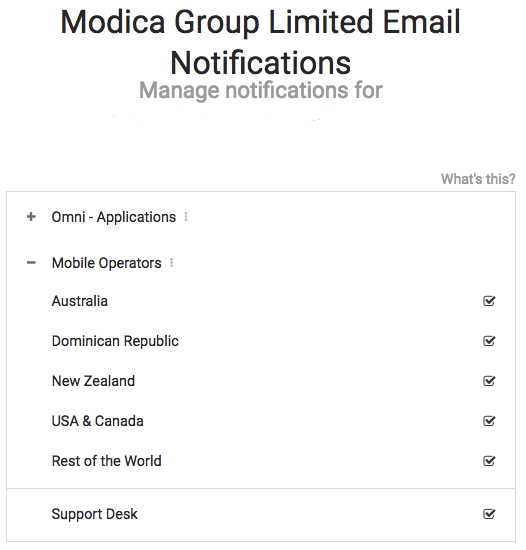
You are then taken to a Manage Notifications page where you can choose the notifications you wish to receive. All options are ticked by default and you can unselect those that are not relevant.
-
Then click the “Update Preferences” button at the bottom of the page
-
A confirmation will appear at the top of the page
-
There will also be a subscription confirmation email sent to the nominated email address. If this does not come through you can re-send the email via the link on the manage notifications page
-
Once this is complete you will receive updates via your nominated notification method.
Modifying your Subscription
You can amend the subscription for the notifications - to both add and remove options for a particular email address.
- The “manage your subscription” option will appear on the bottom of the notification emails

- Once you click on this you will be taken to the same screen for managing your notifications as you do when subscribing
-
Amend the options and then click the “Update Preferences” button at the bottom of the page
-
A confirmation will appear at the top of the page
Unsubscribing
If you wish to unsubscribe from all status updates click the “manage your subscription” option on the bottom of the notification emails
-
You are then taken to a Manage Notifications page
-
If you go to the bottom of the page and click toggle all it will untick all the options available
-
Then click the “Update Preferences” button at the bottom of the page
-
A confirmation will appear at the top of the page that you have been unsubscribed
-
You will then receive an email confirming that you have unsubscribed from the service